
Download ThisService – Custom macOS Services Builder, Free & Secure
Overview
ThisService is a lightweight macOS utility that puts the power of the native Services menu back into the hands of developers and power users. While macOS already ships with a “Services” submenu under the File menu of most applications, creating or editing those services traditionally required diving into AppleScript, Automator, or even writing Objective‑C code. ThisService streamlines the entire workflow: you can write a script in your favorite language, import it directly into the app, and instantly expose it as a macOS service with a custom keyboard shortcut.
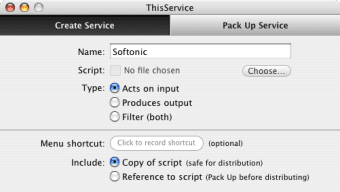
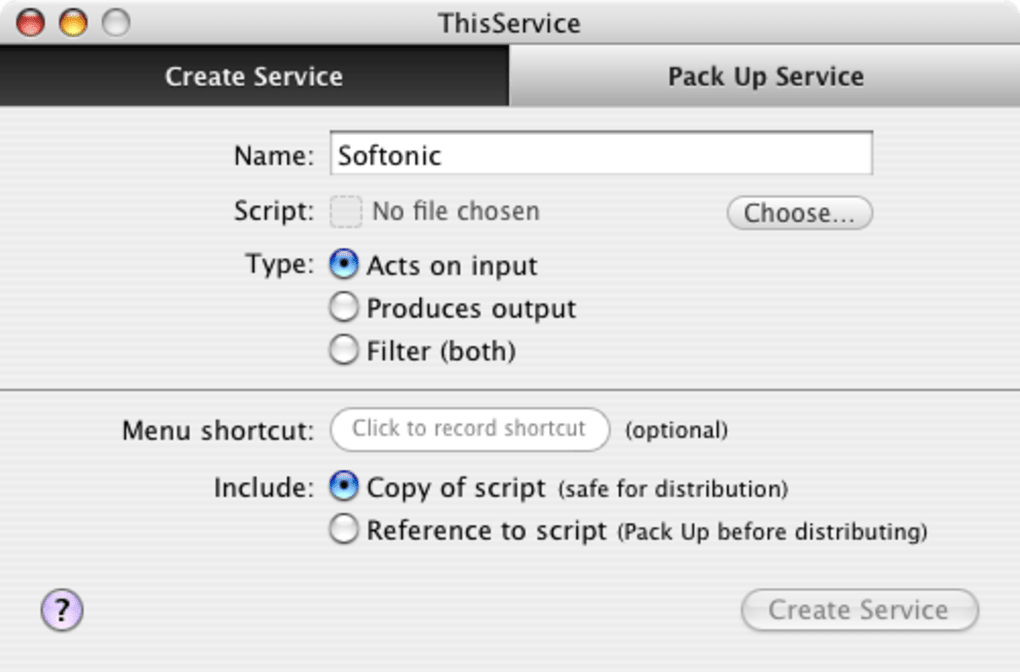
The interface is intentionally minimal—just a script‑loader, a mode selector (input, output, filter), and options for shortcut assignment and script persistence. Because the tool does not lock you into a single scripting language, it appeals to anyone comfortable with a bit of code, from Bash and Python enthusiasts to JavaScript for Automation (JXA) developers. Even if you are new to scripting, the drag‑and‑drop loading makes the first steps painless, while the built‑in preview lets you test the service before committing it to the system.
In short, ThisService bridges the gap between macOS’s hidden automation capabilities and everyday productivity, delivering a free, secure, and constantly updated way to tailor your Mac to the way you work.
Key Features of ThisService
- Multi‑language support: Load scripts written in Bash, Python, Ruby, JavaScript (JXA), AppleScript, or any interpreter that can be called from the command line.
- Three operation modes: Choose whether the script receives input, produces output, or acts as a filter that does both.
- Custom keyboard shortcuts: Assign a global or application‑specific shortcut to launch the service instantly.
- Script persistence options: Keep a copy of the original script inside the app bundle or reference it externally for easy updates.
- Live preview & testing: Run the script on sample data within the interface before publishing it to the Services menu.
- Secure sandboxing: Each service runs under macOS’s standard security model, preventing accidental system changes.
- Automatic updates: The app checks for new releases and applies updates without losing your existing services.
- Lightweight footprint: The installer is under 10 MB and consumes negligible RAM when idle.
- Integration with Automator: Export any created service as an Automator workflow for sharing with teammates.
- Comprehensive documentation: In‑app help files and an online knowledge base cover everything from basic usage to advanced scripting patterns.
Installation & Usage Instructions
Step‑by‑Step Installation
1. Download the installer: Click the “Download ThisService” button on the official website. The file is a signed .dmg package, ensuring a secure source.
2.
Mount the disk image: Double‑click the .dmg and drag the ThisService icon to your /Applications folder.
3. Open the app: The first launch will prompt macOS Gatekeeper to verify the developer. Approve the request, then the app will launch automatically.
4.
Grant permissions: ThisService needs accessibility and automation permissions to add items to the Services menu. Open System Settings → Privacy & Security → Accessibility and check the box for ThisService. Repeat for Automation to allow script execution.
Creating Your First Service
After installation, the main window presents three panels: Script Loader, Mode Selector, and Shortcut & Persistence. Click Load Script and navigate to a local file (e.g., hello.py). Choose the desired mode—most beginners start with Output, which runs the script and returns the result to the frontmost application.
Assign a shortcut, such as ⌃⌥⌘H, and decide whether to store a copy of the script inside ThisService (useful for backups) or reference the original location (ideal for version control). Press Save Service, and the utility instantly registers the new entry under the macOS Services menu. Test it by opening TextEdit, selecting some text, and invoking the shortcut; the script’s output will replace the selection if you chose the filter mode, or appear in a pop‑up if you chose output only.
Troubleshooting Common Issues
If a service does not appear, ensure you have refreshed the Services menu (log out/in or restart the target app). For permission errors, revisit the Automation settings and add the interpreter you are using (e.g., /usr/bin/python3). The built‑in log panel records any execution failures, making it easy to debug script syntax or path problems.
Compatibility, Pros, and Cons
ThisService runs on macOS 10.15 (Catalina) and later, including Ventura and Sonoma. It leverages the native Services framework, so it works seamlessly with all Apple applications (Pages, Numbers, Mail) as well as third‑party apps that expose a Services menu. Because the utility does not rely on background daemons, it does not conflict with system updates or other automation tools.
Pros
- Free to download and use with optional donation model.
- Supports any command‑line script, giving developers language freedom.
- Instant integration with macOS Services menu—no need to restart the system.
- Secure sandboxed execution respects macOS privacy standards.
- Lightweight UI makes script management quick and intuitive.
- Automatic update mechanism keeps the app current without manual downloads.
Cons
- Requires basic scripting knowledge; not a drag‑and‑drop visual builder.
- Only available for macOS—no Windows, Linux, Android, or iOS version.
- Advanced debugging still depends on external terminal tools.
- Limited to scripts that can be executed from the command line; GUI‑only tools need wrappers.
Frequently Asked Questions
Is ThisService really free?
Yes. The core application can be downloaded, installed, and used without any payment. A optional “Support the Developer” link is provided for users who wish to contribute.
Can I use ThisService with Python 3 scripts?
Absolutely. As long as the interpreter is accessible from /usr/bin or any directory listed in your $PATH, ThisService will launch the script correctly.
Do I need to restart my Mac after adding a new service?
No. The service appears instantly in the Services submenu of the frontmost app. If you do not see it, try closing and reopening the target application.
Is it safe to store a copy of my script inside ThisService?
Yes. The app stores a read‑only copy within its sandbox, protecting the original file from accidental modification while still allowing you to edit the external version.
Can I share a service I created with a teammate?
You can export the service as an Automator workflow or simply share the original script file along with the shortcut configuration. The recipient can import it using ThisService’s “Import Service” feature.
Conclusion & Call to Action
If you spend any amount of time on macOS and enjoy automating repetitive tasks, ThisService is a compelling addition to your toolkit. It removes the friction of manually editing the Services folder, offers language flexibility, and integrates natively with the OS’s security model. By providing a clear UI for loading, testing, and publishing scripts, it empowers both novice coders and seasoned developers to customize their workflow without diving into complex Automator diagrams.
Download ThisService today, create a simple “Hello World” script, assign a shortcut, and experience the boost in productivity that comes from turning everyday actions into one‑click services. Remember, the app is free, regularly updated, and backed by a supportive community that shares examples and best practices. Click the download button now and start shaping your Mac the way you want it to work for you.







